Google Sheets WhatsApp Integration: Send Bulk Messages from Your Spreadsheet

Import contacts directly from Google Sheets, map columns to WhatsApp template variables, and launch personalized bulk or drip campaigns in minutes. No coding, no API setup — just paste the link and send.

Start Sending from Sheets Learn About Bulk Messaging
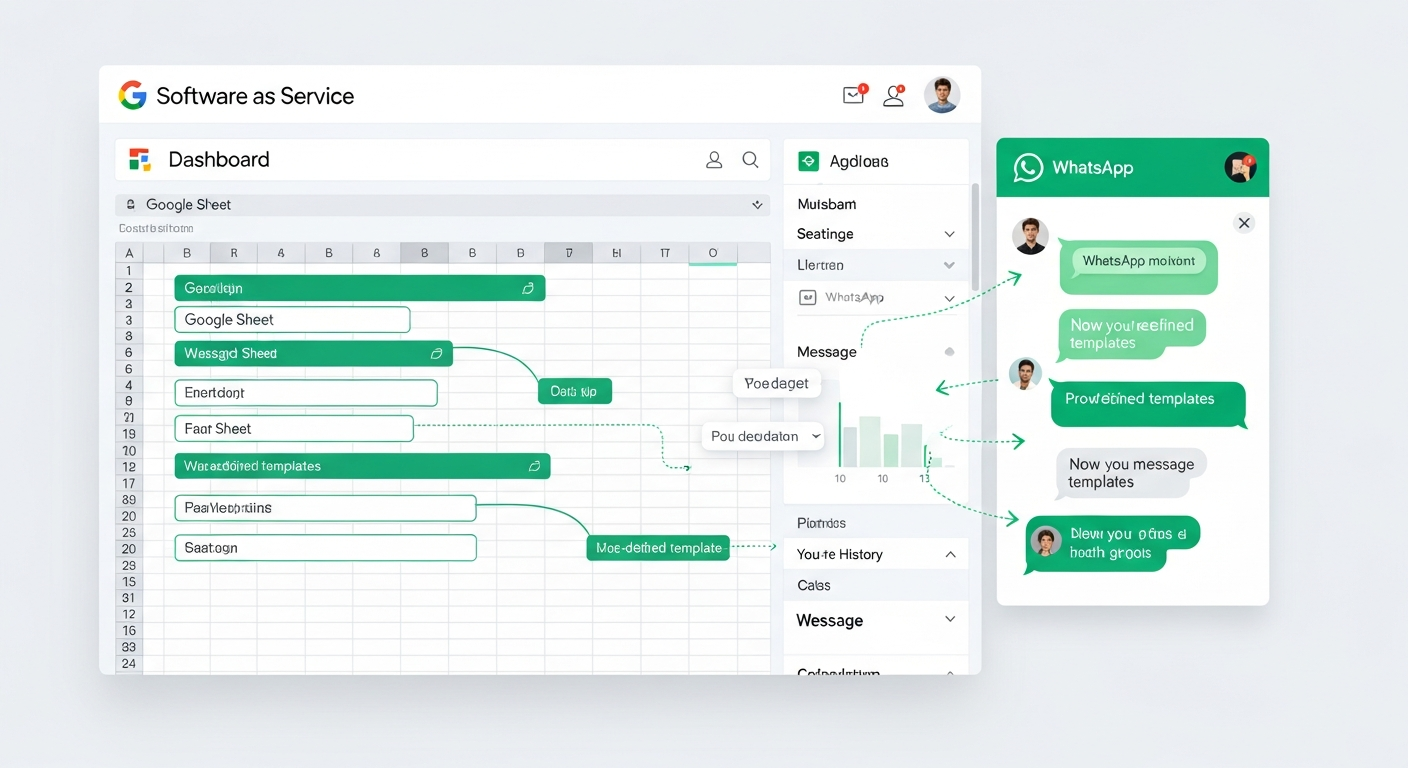
Google Sheets WhatsApp Integration - Import contacts and send bulk messages from spreadsheets

Why Connect Google Sheets to WhatsApp?

Most businesses already manage their customer contacts, leads, and order data in Google Sheets or Excel spreadsheets. Manually copying phone numbers and personalizing each WhatsApp message is time-consuming and error-prone. With Mappstore's Google Sheets WhatsApp integration, you eliminate that manual work entirely.

Whether you are running a seasonal promotion, sending appointment reminders, following up with leads, or onboarding new customers, your spreadsheet becomes the single source of truth. Paste the Google Sheets URL into Mappstore, map your columns, and your campaign is ready to go. Every message is personalized with data pulled directly from your sheet — customer names, order IDs, appointment dates, coupon codes, and more.

This integration powers two of Mappstore's most popular campaign types: bulk campaigns for one-time broadcasts to your entire contact list, and drip campaigns for scheduled, multi-day messaging sequences that nurture leads over time. Both campaign types pull data directly from your Google Sheet, so you never need to re-enter information or deal with complex API configurations.

Key Features of Google Sheets WhatsApp Integration

Everything you need to turn your spreadsheet into a powerful WhatsApp marketing engine, without writing a single line of code.

Paste Any Google Sheets URL

Simply paste the public link to your Google Sheet. Mappstore reads the data instantly — no downloads, no file conversions, no manual imports. Your spreadsheet stays in Google Sheets where you maintain it.

Automatic Column Mapping

Mappstore detects your spreadsheet columns and lets you map them to WhatsApp template variables visually. Match columns like "Name," "Phone," or "Order ID" to template placeholders with a single click.

Real-Time Phone Validation

Before sending, Mappstore validates every phone number in your sheet in real time. Invalid numbers, missing country codes, and duplicate entries are flagged so you can fix them and avoid wasted messages.

Bulk Campaign Support

Send thousands of personalized WhatsApp messages in a single campaign. Your sheet provides phone numbers and variable data — Mappstore handles the sending, throttling, and delivery tracking automatically.

Drip Campaign Scheduling

Use Day and Time columns in your sheet to schedule multi-day drip sequences. Mappstore sends the right message at the right time across multiple days — perfect for lead nurturing, onboarding flows, and course delivery.

CSV Upload Also Supported

Prefer working with CSV files? Export from Excel, Google Sheets, or any CRM, then upload directly. The same column mapping and validation features work seamlessly with CSV uploads too.

Zero Coding Required

No APIs to configure, no webhooks to set up, no scripts to write. If you can create a Google Sheet and paste a link, you can send bulk WhatsApp messages. Designed for non-technical users and marketing teams.

Personalized Template Variables

Each row in your spreadsheet becomes a uniquely personalized message. Use columns for customer name, product, date, amount, or any custom field. Every recipient gets a message that feels individually crafted.

How It Works: Spreadsheet to WhatsApp in 4 Steps

From your Google Sheet to delivered WhatsApp messages in under 5 minutes. Here is exactly how the integration works.

1

Prepare Your Sheet

Create a Google Sheet with phone numbers (including country code) and columns for each template variable like Name, Order ID, or Date. Make the sheet publicly accessible.

2

Paste the Sheet URL

In Mappstore, create a new bulk or drip campaign, select your approved WhatsApp template, and paste your Google Sheets URL. Mappstore reads the sheet instantly.

3

Map Columns to Variables

Mappstore shows all detected columns. Map each column to the corresponding template variable — phone number, customer name, and any other dynamic fields. Preview messages before sending.

4

Send or Schedule

Hit send for immediate delivery or schedule for later. For drip campaigns, messages are sent automatically based on Day and Time columns. Track delivery, read receipts, and replies in real time.

Bulk Campaigns vs Drip Campaigns from Google Sheets

Mappstore supports two distinct campaign types, both powered by your Google Sheet data. Understanding when to use each will help you maximize engagement and conversions.

Bulk Campaigns

Bulk campaigns send a single WhatsApp message to your entire contact list at once. Your Google Sheet needs just two types of columns: a phone number column and columns matching your template variables. This is ideal for:

  • Promotional offers and seasonal sales announcements
  • Event invitations and webinar reminders
  • Product launch notifications
  • Festival greetings to your entire customer base

Drip Campaigns

Drip campaigns send a sequence of messages over multiple days, automatically scheduled based on your spreadsheet data. Your sheet needs additional columns for Day (which day in the sequence to send) and Time (what time to deliver). Drip campaigns are perfect for:

  • Lead nurturing sequences that educate prospects over a week
  • Customer onboarding with daily tips and setup guides
  • Course or training content delivered lesson by lesson
  • Follow-up sequences after purchases or sign-ups

In both cases, Mappstore pulls all personalization data from your Google Sheet. You define the audience, the schedule, and the variables — Mappstore handles the rest. There is no need to re-upload data or manually trigger messages for each day of a drip sequence.

Use Cases: Who Benefits Most?

Businesses across industries use Google Sheets WhatsApp integration to save time, reduce errors, and reach customers at scale.

E-Commerce & Retail

Send order confirmations, shipping updates, abandoned cart reminders, and promotional offers to thousands of customers. Export your Shopify or WooCommerce orders to a Google Sheet and run campaigns with personalized product names, order IDs, and tracking links.

Education & Coaching

Share class schedules, fee reminders, admission updates, and exam notifications. Coaching institutes use drip campaigns from Google Sheets to deliver daily study tips, assignment reminders, and motivational messages to students across batches.

Real Estate & Property

Follow up with leads from property expos, open houses, and online inquiries. Import your lead sheet with names, budget preferences, and preferred locations, then send personalized property recommendations and site visit invitations via WhatsApp.

SaaS & Tech Companies

Run onboarding drip campaigns for new sign-ups, send feature announcement broadcasts, and deliver personalized renewal reminders. Export user data from your CRM to Google Sheets and let Mappstore handle the multi-day messaging sequence.

Healthcare & Clinics

Send appointment reminders, health check-up notifications, prescription refill alerts, and wellness tips. Import patient lists from your records into Google Sheets and run HIPAA-aware messaging campaigns with personalized appointment details.

Travel & Hospitality

Send booking confirmations, itinerary updates, check-in reminders, and post-trip feedback requests. Travel agencies manage group bookings in spreadsheets and use Mappstore to send personalized travel details to each guest automatically.

The Easiest Way to Send WhatsApp Messages from a Spreadsheet

If your business already tracks customers, leads, or orders in Google Sheets, you are sitting on a ready-made WhatsApp campaign audience. The challenge has always been getting that data into a WhatsApp messaging tool without complex API integrations, custom code, or expensive middleware platforms.

Mappstore solves this with a simple paste-and-send workflow. There is no need to learn APIs, set up Zapier automations, or hire a developer. You paste your Google Sheets URL, Mappstore reads the data, and you visually map columns to template variables. The entire process takes under five minutes from spreadsheet to sent messages.

For businesses in India, this is especially valuable. Many small and medium businesses manage their entire customer database in Google Sheets or Excel. WhatsApp is the primary communication channel for their customers. Mappstore bridges these two tools with zero friction, enabling WhatsApp marketing Google Sheets automation that was previously only available to enterprises with dedicated tech teams.

Google Sheets WhatsApp Automation for Indian Businesses

India's WhatsApp user base exceeds 500 million, making it the most effective channel for customer communication. Businesses running WhatsApp campaigns in India need a solution that works with their existing tools and workflows. Since Google Sheets is free and widely used across Indian businesses — from kirana stores to edtech startups — Mappstore's spreadsheet integration is purpose-built for this market.

Whether you are a D2C brand sending promotional blasts, a coaching institute sharing daily assignments, a real estate firm following up with leads from a property expo, or a restaurant sending festival offers, Mappstore lets you go from a Google Sheet to delivered WhatsApp messages in minutes. No technical barriers. No per-message markup on top of Meta's rates. Just straightforward spreadsheet-to-WhatsApp messaging that works.

The combination of Google Sheets data import, WhatsApp Business API compliance, pre-approved template messaging, and real-time delivery tracking makes Mappstore the most practical bulk WhatsApp sender spreadsheet solution available for Indian businesses today.
Frequently Asked Questions

How does Google Sheets WhatsApp integration work in Mappstore?
Simply paste any public Google Sheets URL into Mappstore when creating a bulk or drip campaign. Mappstore automatically reads your spreadsheet, detects columns, and lets you map them to WhatsApp template variables like customer name, order ID, or appointment date. Phone numbers are validated in real time, and your campaign is ready to send in minutes.
Do I need coding or API knowledge to send WhatsApp messages from Google Sheets?
No. Mappstore's Google Sheets integration requires zero coding or API setup. You just paste the public link to your Google Sheet, map the columns to your WhatsApp template variables using a visual interface, and hit send. It is designed for marketers, sales teams, and business owners who already manage contacts in spreadsheets.
Can I use Google Sheets for WhatsApp drip campaigns?
Yes. For drip campaigns, your Google Sheet should include columns for Day (which day to send), Time (what time to send), and any template variable data. Mappstore reads these columns and automatically schedules messages across multiple days, sending personalized WhatsApp messages at the specified times without manual intervention.
What format should my Google Sheet be in for WhatsApp bulk messaging?
For bulk campaigns, your sheet needs a column with phone numbers (with country code) and columns for each template variable. For drip campaigns, add Day and Time columns. The sheet must be publicly accessible (set sharing to "Anyone with the link"). Mappstore validates all phone numbers and data before sending.
Is there a limit to how many contacts I can import from Google Sheets?
Mappstore supports importing thousands of contacts from a single Google Sheet. There is no hard limit on rows in your spreadsheet. The platform processes large sheets efficiently and validates each phone number in real time, flagging invalid entries so you can fix them before launching your campaign.
Can I also upload a CSV file instead of using Google Sheets?
Yes. In addition to Google Sheets URL import, Mappstore also supports direct CSV file uploads. You can export any spreadsheet application's data as CSV and upload it. The same column mapping and validation features apply whether you use Google Sheets or CSV upload.
How does Mappstore handle invalid phone numbers in my spreadsheet?
Mappstore validates every phone number in real time as it reads your Google Sheet. Numbers without country codes, duplicate entries, and incorrectly formatted numbers are flagged before you send. You can review and fix issues directly, ensuring you only send to valid WhatsApp numbers and avoid wasting message credits.

Ready to Send WhatsApp Messages from Your Spreadsheet?

Paste your Google Sheets URL and launch your first WhatsApp campaign in under 5 minutes. No coding required.

Get Started Free Calculate Campaign Cost